

Regular website maintenance is essential. Only with the help of regular website maintenance can the risk of hacker attacks be reduced, GDPR compliance be maintained, slow WordPress avoided while ensuring both functionality and design.
But what exactly is involved in website maintenance? How do I go about it and what do I need to keep in mind? Even if you are not a techie, the following guide will show you how to carry out the upkeep and maintenance of your WordPress website yourself. As bonus material, you will find a website maintenance checklist at the end of the article that lists all the regular tasks (daily, weekly, monthly, and yearly) for you.
Website maintenance: What is included?
Website maintenance depends heavily on the scope of the website being maintained. In one sentence, website maintenance can be described as follows: „The creation, integration, and updating of content as well as the technical maintenance of the website.“
To enable you to maintain your own website, we show you below very concretely which to-dos are required in which cycles.
Some tasks still need to be done manually, while for others you can use various tools to automate them. We’ll provide you with plenty of recommendations for tools and plugins so you can keep the effort involved in maintaining your website to a minimum.
Note regarding all updates and major changes: If you want to be on the safe side, we recommend testing updates or major changes on a staging environment and also creating a Backup on your live page before applying the changes.
💡 My tip: A staging is in all WordPress Hosting Included in WPspace's pricing plans.
Backups
Website backups are of the utmost importance because they help you prevent data loss. How often you need to back up your website depends on the type of website and how often it’s updated. If you have a website where a new blog post is published only once a month, a backup every 14 days may be sufficient. In contrast, a WooCommerce store may even require hourly backups to safeguard important customer and order data.
Backups ensure that you can restore your website to its original state even after a virus infection, a hacker attack, or a failed update. This saves you a lot of stress, since troubleshooting can feel like looking for a needle in a haystack. At the same time, you avoid downtime, which can lead to dissatisfied customers and lost revenue.
There are various possibilities creating WordPress backups. You can create and manage them automatically using a backup plugin or through your hosting control panel. We recommend that you create regular backups using at least two different backup methods. In addition, you should store full backups (not incremental ones) locally or in the cloud every 2 to 6 months and not rely on just one storage location. This way, you’ll have an „emergency backup“ in case you experience a complete loss of your existing backup.

If you choose WPspace as your hosting provider, WordPress hosting providers Once you've made your decision, daily backups will be created for you and stored for 14 days. This ensures that you always have a backup of your website that is no more than one day old. In addition, you can configure and create additional backups through the hosting interface. This way, WPspace, as your host, already takes some of the work off your hands.
RelevanceVery important
Frequency: Daily (automated)
Effort: Low
Content Management (Entering and updating content)
Content is the heart of your website. That’s why you should always keep it up to date! Have your contact details changed? Is there a new product in your lineup? Minor changes, such as a new phone number, can be updated on websites in just a few minutes. If you want to publish new content, such as blog posts, landing pages, or subpages, you should set aside more time.
Keep your website always up to date, meaning update, add, and also remove content so that your website always stays current.
Relevance: Important
FrequencyDaily to Monthly
EffortLow to Very high
Plugin Updates

Plugins are tools for your WordPress website. For example, you can use plugins to create visual highlights such as sliders and galleries, and with the help of SEO Plugins check your Google rankings.
If you don't keep your plugins up to date, they can pose security risks. That's why it's a good idea not to neglect updates and to perform them regularly. Updating plugins is usually simple and can be done with a single click on „Update.“ You can tell if updates are available by the red number in your WordPress menu, among other indicators. Keep the following points in mind before and while you’re updating your plugins:
- Create a complete backup of your website beforehand
- Update one plugin at a time
- Start with the security updates for minor versions
- Be aware of which plugins can have a greater impact on your website. Check the appearance and functionality of your website after updating them.
- Should a problem occur: Don't panic, you have a backup. You can also try to restore the older version of the plugin, if not, restore your backup. On the second attempt, leave this update alone and try again with the next update.
- After performing all updates, check the look and functionality of your website in a private window / incognito tab.

Save yourself some time and effort by enabling automatic updates for security-related minor version updates in your website's hosting control panel. Some hosting providers, such as WPspace, offer this feature by default at no additional cost.
💡 Tip: You shouldn't blindly let major updates run automatically, because they often cause problems on websites.
RelevanceVery important
Frequency: Weekly to Monthly
EffortMiddle
Theme Updates

In addition to your plugins, you should also keep your theme up to date to protect your website from potential attacks. Here, too, create a backup of your website before updating, perform the update, and then conduct a visual inspection of your website.
If you have any outdated or unused themes installed, delete them to get rid of unnecessary clutter and eliminate security risks.
You can also enable automatic updates for themes in your hosting control panel. The same rule applies here: Enable only the security-related minor updates. You can perform major updates either in your WordPress dashboard or in your hosting control panel.
RelevanceVery important
Frequency: Weekly to Monthly
EffortMiddle
WordPress Core Update
There’s one very important thing you should update regularly: the WordPress Core—that is, WordPress itself. With each new update, WordPress often offers new features, improves the dashboard’s usability, and patches existing security vulnerabilities.
As with all updates, you should definitely create a backup before the core update and then thoroughly test and check the website afterward.
💡 Tip: Plugins are often not yet compatible with a new WordPress version immediately after its release, which can lead to errors on your website. In such cases, it’s worth checking forums or groups to see what other users have experienced. Alternatively, you can test the update on a staging environment.
Similar to plugins and themes, you can configure automatic updates and perform updates in the hosting control panel or your WordPress dashboard. In the WordPress dashboard, you can find this option under Dashboard > Updates:

RelevanceVery important
Frequency: Weekly to Monthly
EffortMiddle
24/7 Monitoring

Is your website or online store the foundation of your business? If so, website downtime can be costly for you. To help you respond quickly to outages, there are 24/7 monitoring services that continuously check your website’s availability for you. Should an outage (downtime) occur, you’ll be notified—depending on the provider—via your preferred contact method.
One of the best-known and at the same time free monitoring tools is „"Uptime Robot"“. Sign up there and submit your website for regular monitoring. The tool checks every 5 minutes to see if your website is accessible and notifies you by email if it isn't. This way, you can take action as quickly as possible.
Relevance: Important
Frequency: Daily
Effort: Low
Security scans
Security scans check your website for malware (viruses) and verify whether your website's IP address is on a blacklist. You can perform such a check, for example, at Sucuri Do it for free. Just enter your URL in the field—ideally, your result will look something like this:

As a WordPress host, we already implement many security measures for our customers, because the security of our customers’ websites is just as important to us as that of our own website. Among other things, we have a web application firewall that blocks attackers on the server side before they can target websites. In addition, we proactively scan all of our clients’ websites regularly for malware and also provide support in removing it.
Unfortunately, there are security risks that we, as a WordPress host, have no control over. That's why I have the following security tips for your WordPress Security:
- Choose a reliable and secure hosting provider that places a high priority on the security of its customers' websites.
- Perform regular updates (as described in sections 1.3 through 1.5) and, while doing so, remove any unused plugins and themes.
- Use an additional security plugin; I recommend the Ninja Firewall plugin.
- Use strong passwords.
RelevanceVery important
Frequency: Daily
Effort: Low
Analyses and evaluations
One thing that isn't part of technical website maintenance is analyzing and evaluating your website. Analytics tools, such as Matomo or Google Analytics and Google Search Console track and analyze visitor behavior on your website.

Always keep an eye on your visitor numbers and how your visitors found their way to your website, because these figures provide the perfect foundation for further search engine optimization (SEO) efforts. Search engine optimization should be an integral part of your online marketing mix, as it helps you attract organic visitors who are genuinely interested in your expertise, products, or services.
💡 Tip: We have something for you 21 exclusive tips for your search engine optimization compiled, with which you will be found even better on Google! If you are not yet using an analysis tool, we recommend the GDPR-compliant Matomo Hosting by WPspace.
Relevance: Depending on your website, unimportant to very important
FrequencyDaily to Monthly
Effort: Low to High
Check loading times (pagespeed)

Your website’s load times aren’t just a key factor in your visibility on Google—they’re also crucial for attracting customers. If it takes several seconds for your website’s content to appear, most visitors will have already switched to your competitors. On the internet, people are impatient and want to see content quickly—preferably right away.
Check your website's load time regularly, especially when you make changes to it. That's because new images, plugins, or content can significantly affect your website's load time.
To test your website's actual load time and get a detailed report, you can use, for example, our kostenfreien WordPress Speedtest nutzen. Als Richtwert sage ich immer, dass die Fully Loaded Time nicht über 2 Sekunden liegen sollte und die Time To Interactive am besten unter einer halben Sekunde. Alternative Tools, die du zum Auswerten deiner Ladezeit nutzen kannst, sind GT Metrix, Pagespeed Insights oder der Bulk Pagespeed Test von experte.de, mit dem du mehrere Unterseiten gleichzeitig testen kannst.
Sollte deine Ladezeit nicht im grünen Bereich sein, kannst du unsere Tipps für deine Pagespeed Optimierungsmaßnahmen anwenden. Oder nutze alternativ unseren kostenfreien Umzugsservice, bei dem wir gerne eine kostenfreie Ladezeiten Optimierung für deine Website mit Vorher-Nachher-Bericht durchführen.
Relevance: Important
Frequency: Monatlich (Abhängig von deinem Aktualisierungsintervall)
Effort: Gering bis Mittel
Check broken links

Änderst du auf deiner Website bestehende URLs von Seiten oder Beiträgen ab, ohne die internen Verlinkungen gegen zu prüfen, kannst du damit sowohl Besucher:innen als auch Google-Crawler verärgern.
Nutze ein Tool wie den „Dead Link Checker“ um alle externen und internen Links deiner Website zu analysieren. Sollte es zu Fehlern kommen, behebe diese anhand der Ergebnisse.
Relevance: Important
Frequency: Monatlich
Effort: Gering
PHP Version
WordPress verwendet PHP, womit deine Website nicht mehr eine statische Seite ist, sondern dynamisch Inhalte ausspielt. Auch PHP bringt Sicherheitslücken mit sich, die in der aktuellsten PHP Version von den Entwicklern geschlossen werden. Sollte deine Website auf einer veralteten PHP Version laufen, hast du dadurch potenzielle Sicherheitslücken, die nicht mehr durch die Entwickler geschlossen werden.
In der Regel kannst du die PHP Version deiner Website in deiner Hosting Oberfläche aktualisieren. Bei WPspace geht das ganz einfach über ein Dropdown-Menü.

Wenn du deine aktuelle PHP Version auf eine neuere Version anpasst, dann überprüfe danach unbedingt deine Website. Oftmals sind Plugins oder Themes noch nicht mit der neusten PHP Version kompatibel, was in vielen Fällen zu einem Kritischen Fehler auf Websites führt.
Relevance: Important
Frequency: Halbjährig
Effort: Gering
Database maintenance
Wenn deine Website weiter wächst, steigt auch automatisch das Volumen deiner Datenbank. Durch den Wachstum sind auch immer mehr überflüssige und veraltete Daten in der Datenbank vorhanden. Du kannst deine Datenbank säubern – aber sei dabei vorsichtig, da das Reinigen viele Risiken mit sich.

Es gibt bereits viele Plugins, die du dafür verwenden kannst. Eine Übersicht findest du in deinem WordPress Dashboard unter Plugins, wenn du nach „Database“ suchst.
RelevanceMiddle
Frequency: Halbjährig
EffortMiddle
Optional: SSL certificate
Ohne SSL Zertifikat erhalten deine Website Besucher:innen die Meldung „Dies ist keine sichere Verbindung“. Damit es garnicht so weit kommt, solltest du von Anfang an ein SSL Zertifikat ausstellen.
Ich habe die Position bewusst als optional markiert, da wir als Hoster das SSL Zertifikat serverseitig automatisch für unsere Kund:innen verlängern. Hier besteht für WPspace Kund:innen also kein Handlungsbedarf.
Relevance: Unwichtig bis sehr wichtig
Frequency: Garnicht bis Jährlich
Effort: Gering
Checklist for Managing Your Own Website 📝
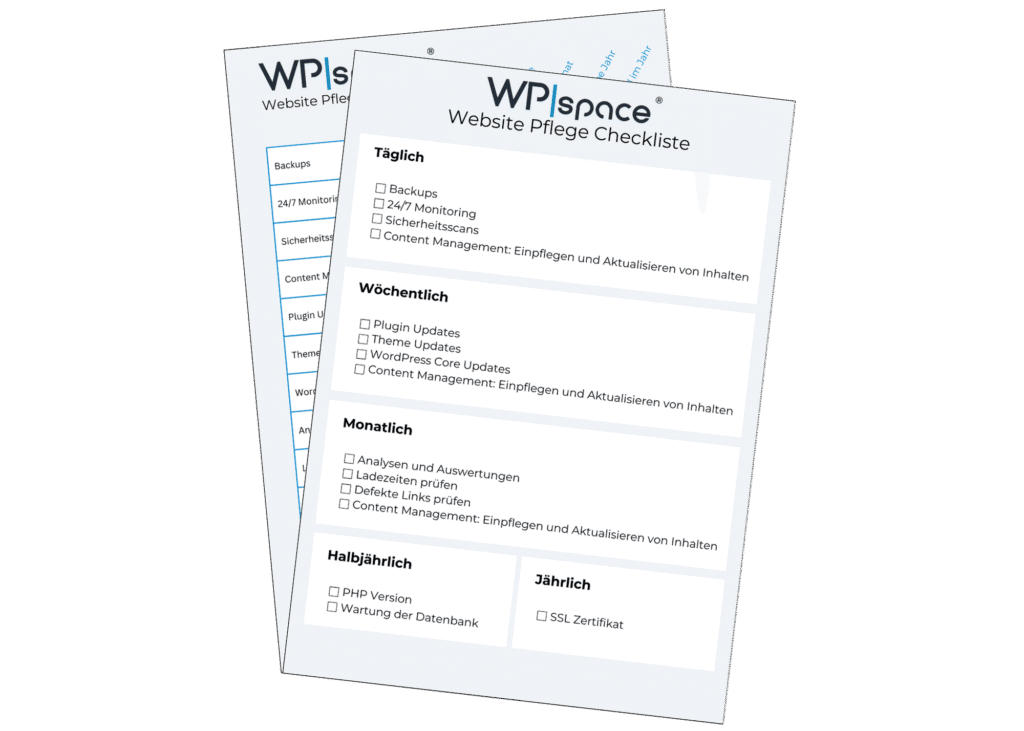
Der Umfang und die Regelmäßigkeit einer Website Pflege ist stark abhängig von der individuellen Konfiguration und Größer einer Website. Manche Punkte fallen allerdings regelmäßig – oder auch eher unregelmäßig – für jede Website an.
Damit du einen Überblick behältst, haben wir für dich eine Checkliste zur Website Pflege als PDF zusammengestellt. Du hast zwei verschiedenen Varianten der Checkliste zur Verfügung – wähle also die aus, die besser zu deinem Workflow passt.
Jetzt die Website Pflege Checkliste herunterladen! 📝
Should you maintain your website yourself or have it maintained by someone else?
Mit unserer Checkliste hast du eine super Basis um deine Website Pflege selbst durchzuführen. Wir empfehlen dir immer deine Website aktuell zu halten und keine Probleme in die Zukunft zu schieben, da sich das Problem dadurch nur verschiebt und vermutlich noch größer wird.
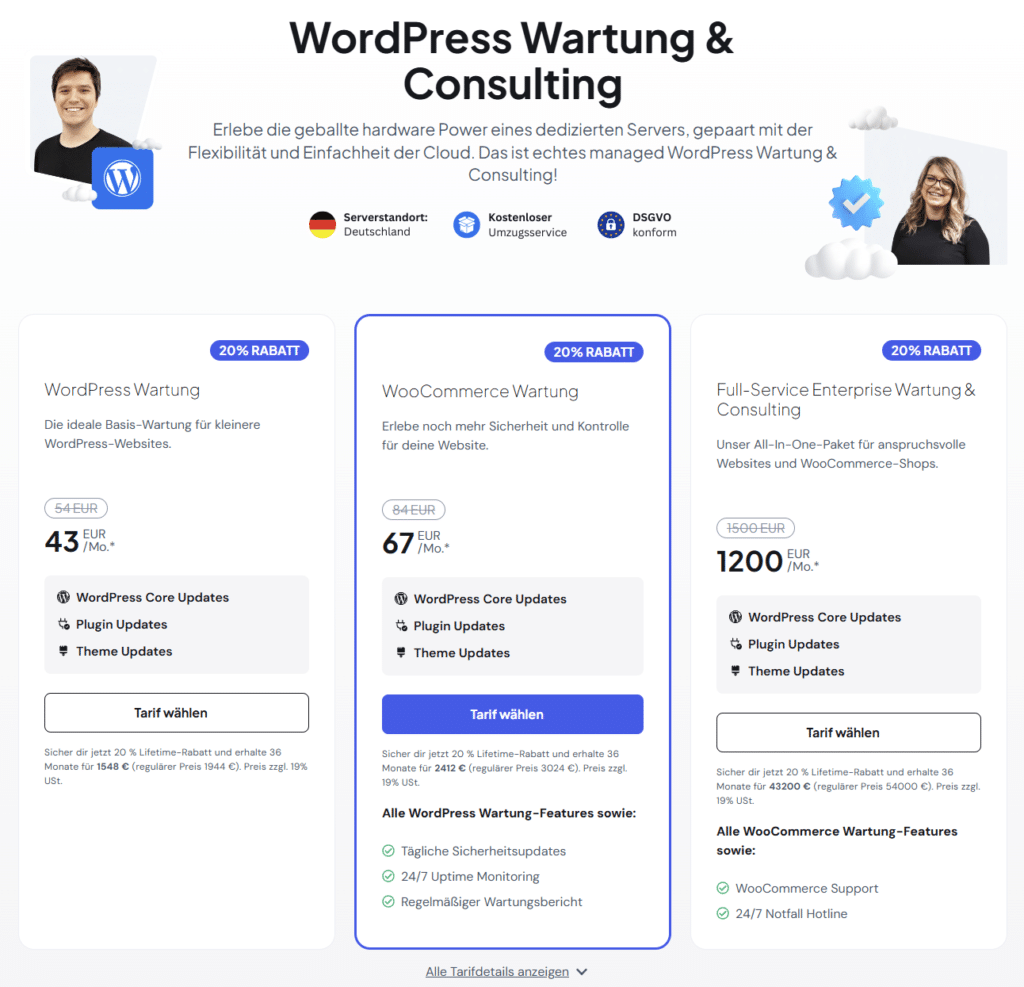
Wenn du nicht viel Zeit hast, selbst kein WordPress Nerd bist oder die Risiken von Updates, Aktualisierungen und Anpassungen vermeiden möchtest, hast du auch die Möglichkeit die Website Pflege durch Dienstleister durchführen zu lassen.
Dabei gibt es verschiedene Möglichkeiten. Du kannst die ganzheitliche Website Pflege, also sowohl die technische als auch die inhaltliche Pflege an externe Hände geben, aber auch nur die technische Pflege. Hier kann es zu großen preislichen und qualitativen Unterschieden kommen.
Für WPspace Kund:innen haben wir unsere exklusive WordPress Maintenance. Bereits ab nur 15 Euro monatlich halten echte WordPress Experten deine Website auf dem neusten technischen Stand. Durch die regelmäßigen Updates, Sicherheitscheckups und Monitoring, schützen wir deine Website nachhaltig vor potentiellen Angriffen, beheben Bugs und aktivieren neue Funktionen in deinem WordPress Dashboard.
FAQs
How often should you update your website?
Kurz gesagt, solltest du deine Website immer auf dem aktuellen Stand halten.
Wenn es um die inhaltliche Website Pflege deiner Website geht, ist das stark abhängig von den Inhalten deiner Website. Hast du zum Beispiel einen One Pager für deinen Friseursalon und deine Kontaktdaten bleiben gleich, muss deine Website nicht regelmäßig aktualisiert werden. Hast du ein Restaurant mit wöchentlich wechselnder Speisekarte haben, solltest du diese auch wöchentlich austauschen.
Wenn es um die technische Website Pflege gehst, hast du mit unserer Checkliste einen super Leitfaden, der dir auch grobe zeitliche Richtlinien an die Hand gibt. Die Wartung deiner Website kannst du auch an professionelle Hände abgeben, die für dich regelmäßig Updates und Sicherheitschecks durchführen.
How do you update a WordPress website?
Eine WordPress Website kann man direkt über das WordPress Dashboard oder alternativ die Oberfläche des Hosters aktualisieren.
In deinem WordPress Dashboard findest du im linken Menü direkt die Punkte Plugins und Themes, die dir durch Zahlen neben den Namen auch angeben, ob offene Updates vorhanden sind. Hier kannst du direkt über „Aktualisieren“ beim jeweiligen Plugin / Theme die Updates durchführen.
Beachte die Tipps, die wir in den jeweiligen Update Beschreibungen mit aufgenommen haben. Erstelle im Idealfall vorab ein Backup und teste die Updates auf einer Staging.
Why should you update your website?
Die Inhalte deiner Website sollten immer aus folgenden wichtigen Gründen aktuell sein:
– Falsche Informationen vermeiden, um deine Kund:innen nicht zu verärgern.
– Vollständigkeit, damit deine Kund:innen alle relevanten Informationen über dich oder dein Produkt / Dienstleistung finden.
– Google hasst falsche oder veraltete Informationen. Abstrafungen von Google kannst du durch aktuelle Inhalte vermeiden.
Conclusion
Die Inhalte deiner Website sind das Herzstück deiner Website und sollten immer aktuell sein. Hast du veralteten Content oder Informationen, verärgerst du damit Websitebesucher:innen und die Crawler von Google. Deswegen ist eine regelmäßige Website Pflege essenziell für den Erfolg deiner Website.
Mit Hilfe unserer Website Pflege Checkliste kannst du deine Website selbst sowohl technisch als auch inhaltlich up to date halten. Dafür benötigst du etwas technisches Know How und ausreichend Zeit. Solltest einmal etwas schief gehen bei der Wartung, kannst du ein zuvor erstelltes Backup wieder einspielen – also erst einmal kein Grund zur Sorge.
Möchtest du deinen Zeitaufwand als auch das Risiko verringern, kannst du die Pflege und Wartung deiner Website an professionelle Hände abgeben. Dafür gibt es verschiedene Anbieter mit verschiedenen enthaltenen Dienstleistungen. Wir übernehmen für dich die Updates deiner Website bereits ab 15 Euro monatlich. So hast du mehr Zeit für dein Kerngeschäft.
Wenn du den Zeitaufwand deiner WordPress Website Pflege noch weiter reduzieren möchtest, kannst du dich für einen Managed WordPress Hoster wie WPspace entscheiden, der dir bereits einen Teil der Aufgaben abnimmt. So erstellen wir täglich Backups, verlängern das SSL Zertifikat automatisch und führen tägliche Malware Checks durch.


 Deutsch
  English