

Imagine you run a successful online shop or a well-visited blog. A potential customer excitedly clicks the „Add to cart“ button or uses a filter function to find their desired product. But instead of an immediate reaction, nothing happens at first. The seconds tick by, the loading animation spins, and the bounce rate increases.
We often experience this scenario at WPspace when clients come to us with performance issues. From our experience managing over 4,000 websites, we know that the problem is often not just a lack of on-page optimization, but also the WordPress database. More specifically, the table wp_options.
In this detailed guide, I will first explain the structure and function of wp_options. Following that, I will show you a beginner-friendly method using two free plugins to optimize your wp_options. Finally, I will provide you with the most important SQL commands for cleanup directly via phpMyAdmin.
What is the wp_options table?
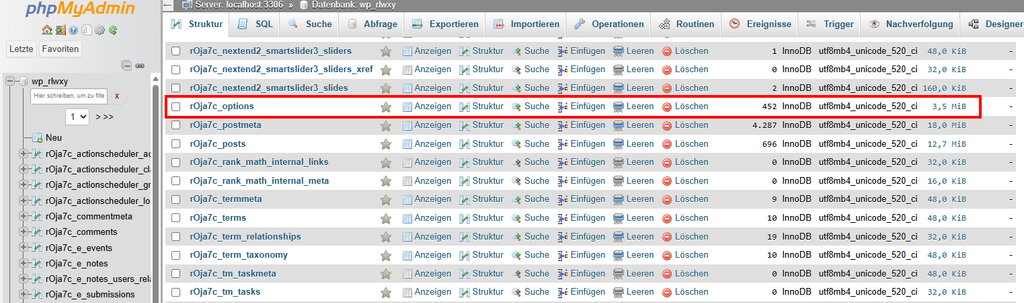
The wp_options-Table is a key component of your WordPress installation. As soon as you install WordPress and your database, this table is created automatically. It serves as your website’s central memory. This is where WordPress stores all the global configurations necessary for its operation.
The name may vary depending on the database prefix you selected (for example,. xyz123_options), but the function remains identical. Four primary types of data are stored in this table:
- Core settings: Your website URL, the title of your blog, the administrator's email address, the active theme, search engine visibility, etc.
- Plugin Configurations: Almost every plugin uses the
wp_options, to save settings. The SEO plugin Rank Math stores here, for example, your preferences for meta tags, while WooCommerce stores shipping settings or tax rules there. - Theme Options: Comprehensive themes such as Divi, Avada, and Enfold store complex layout settings, color codes, and fonts in this table.
- Transients: This is temporarily cached data. A typical example is querying a social media API or weather data that should not be reloaded on every page view.
The structure of the table
To understand why the adjustment is so important, let's take a quick look at the four columns in the table:
| Column | Meaning | Relevance to you |
| option ID | A sequential number | Identification of the entry |
| option name | The name of the setting | Helps you identify which plugin created the entry |
| option value | The actual value | Here are the configurations or data |
| autoload | The switch (yes/no) | Crucial to Performance |
„Autoload“ as a Performance Factor

Here we come to the critical point for your loading time. The column autoload determines whether a data set at every single page view is loaded, regardless of whether it is currently needed on that specific page or not.
Imagine your WordPress website as a hiker. The wp_options is his backpack. Entries with autoload = yes are like stones he has to carry with him with every step. If you install a lot of plugins (and maybe delete them later without removing the data), that backpack gets heavier and heavier.
The result: Every time a request is made to your website, the server first has to sift through this huge “backpack” before it can deliver the actual content. This leads to noticeable delays, especially during dynamic processes such as the checkout process in an online store or AJAX requests. In a high-performance WordPress Hosting Plan At WPspace, thanks to our optimized infrastructure, this issue becomes apparent later than with budget hosting providers, but even we can't defy the laws of physics when it comes to databases.
Why is the wp_options table getting so big?
There are three main reasons why your database keeps getting bigger over time:
1. Data corpses from uninstalled plugins
Many plugin developers program their plugins so that when you delete them, they remove none or only some of the data from the database. They assume that you might reinstall the plugin at some point. As a result, hundreds of lines remain in your wp_options that no longer serve any purpose whatsoever, but are still loaded every time they are called.
2. Numerous revisions
By default, WordPress saves every change you make to a page or post. If you save a page 50 times, 50 copies are created in your database. While the content itself in wp_posts Metadata associated with posts and pages often ends up in the wp_options table.
A large number of revisions are generated particularly on websites where a lot of work is done and, accordingly, a lot of caching takes place. This also applies to websites in the development phase, as intensive work is carried out and frequent saves are made during this phase. As a result, revisions quickly accumulate that date back to the initial development stages.
3. Orphaned Transients
Transients actually have an expiration date. However, if a plugin is poorly programmed or if a cron job crash prevents deletion, thousands of „expired“ transients accumulate. These clog up your database like old garbage that was never taken to the bin.
Diagnose: Is your wp_options too big?
Before you begin cleaning up, you should check the current status. There are no fixed limits for when the wp_options table is too large, but at WPspace we use the following guidelines as a reference:
- Ideal: 300 KB to 1.5 MB. WordPress is extremely efficient in this regard.
- Acceptable: 1.5 MB to 4 MB. Your website is still fast, but a little spring cleaning never hurts.
- Action required: If the file is 4 MB or larger, you should investigate why it's so large.
💡Note: There are also wp_options that perform well with 20 MB. This overview is simply meant to give you an idea of when you should take a closer look at your wp_options.
How to check the size of autoloaded options in the WordPress Dashboard
The easiest way to determine the size of your automatically loaded options is in your WordPress admin panel. Navigate to „Tools“ > „Site Health.“ If you see the following message under „Critical Issue,“ you should analyze your automatically loaded options more closely:
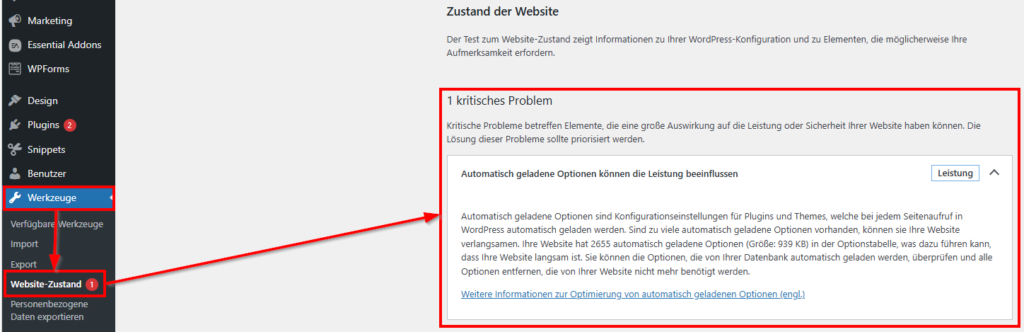
„Autoloaded options can affect performance
Automatically loaded options are configuration settings for plugins and themes that are automatically loaded every time a page is viewed in WordPress. If there are too many automatically loaded options, they can slow down your website. Your website has 2,655 automatically loaded options (size: 939 KB) in the options table, which may cause your website to be slow. You can review the options that are automatically loaded from your database and remove any options that your website no longer needs.“
You'll usually see this message if your automatically downloaded options exceed about 800 KB. If you don't see this message, there's no need to take any action.
💡Note: Even though WordPress classifies this as a critical issue, in most cases it’s not an emergency. You should definitely investigate the problem, but don’t panic.
How to check the size of autoloaded options via phpMyAdmin

If you use your hosting with us, you can easily find the access in your hosting interface under the „Databases“ section. From there, you start phpMyAdmin.
- Select your database from the left column.
- Search the list for the table that is based on
_optionsends. - Look up the value in the „Size“ column.
💡Important:
Pay special attention to the total size of the „autoload“ data in wp_options. To do this, click on wp_options and then navigate to the „SQL“ tab. Enter the following SQL command there:
SELECT SUM(LENGTH(option_value)) FROM wp_options WHERE autoload = 'yes';💡Note: Replace the prefix „wp“ with the prefix of your database.
If this value exceeds 800 KB to 1 MB, WordPress will be slowed down by loading this data on every click.
Clean up wp_options with plugins (The easy method)
For most WordPress users, using plugins is the safest and most convenient option. We regularly use the recommended plugins ourselves as part of our WordPress Maintenance, to keep our customers' databases lean and, as a result, high-performing.
Preparation: The backup (mandatory!)
Before you even make a single click: Create a backup your database. We recommend creating a backup for this directly through your hosting provider or using the free WordPress plugin Updraft. It is best to also store a backup of your database in the cloud (Google Drive, Dropbox, etc.) so that you can always access it in an emergency. Working on the database is very risky—one wrong click can destroy the entire database.
1. General cleanup with Advanced Database Cleaner
Working with plugins makes database optimization easier and somewhat limits the risk. Install the free plugin „Advanced Database Cleaner“on your WordPress website. This allows you to remove the first data from your database.
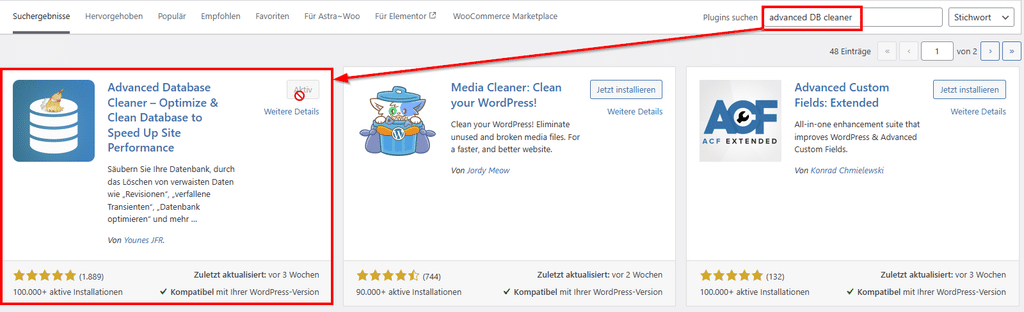
Follow these steps to clean up your wp_options table:
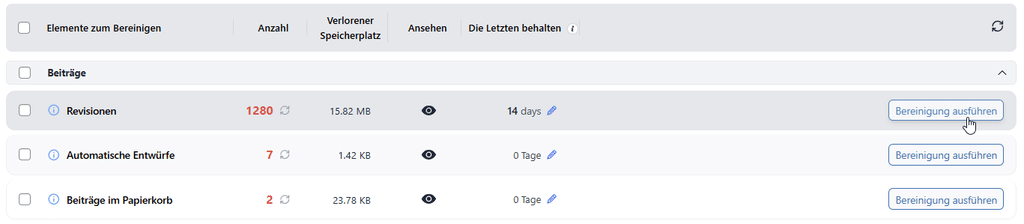
- Navigate to WP DB Cleaner in your WordPress admin menu.
- Under „"general cleanup"“ You'll see entries like „"Revisions," "Drafts," and "Expired Transients.".
- Highlight this and select „"Perform cleanup"“.
💡Note:
Fight fires wisely. This means that, if necessary, it may be important for you to keep the revisions (saved drafts of your pages and posts) from the last 14 days. In that case, delete only the revisions that are older than 14 days.
2. Optimize the autoload with AAA Option Optimizer
We recommend the following plugin for analyzing the automatically loaded options: „"AAA Option Optimizer"“. It shows you exactly which entries in your wp_options table are actually being loaded, and which ones are just old junk data.
💡Important: In order for the plugin to identify which options are actually being loaded, you need to actively use your website. That means: visiting and editing it.
💡Our tip: Install and activate the plugin. Wait a few weeks after you've been actively working on your website before removing the automatically loaded options.
Once the plugin has finished analyzing the data, proceed as follows:
- Go to „"Tools" > "Option Optimizer"“.
- The plugin will now show you a list of "Unused, but autoloaded" entries.
- Here, you can specifically delete entries for plugins that you no longer have installed.
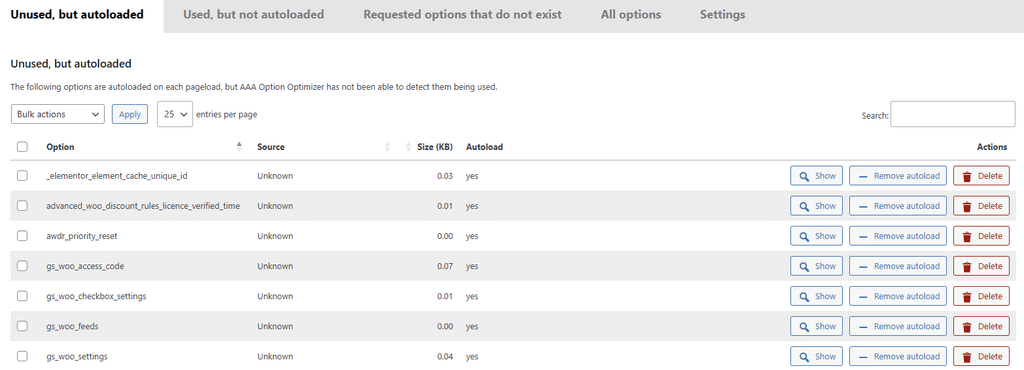
💡Note: Your goal here is to identify and clean up junk data. This includes, for example, data that remains even after a plugin has been deleted.
Alternative Plugins:
In addition to the mentioned plugins, there are numerous other plugins you can use to optimize your database for free. In addition to the ones already mentioned, we can recommend the following two plugins, as we have had very good experiences with them:
Before using these plugins, you should definitely create a backup of your database and proceed with caution.
Clean up wp_options with SQL commands
If you're tech-savvy and prefer a direct approach, you can use SQL commands. This is faster, but it requires the utmost precision.
💡Important: Before you begin, make a backup of your database.
To run the SQL commands, you'll need to access your database via phpMyAdmin:
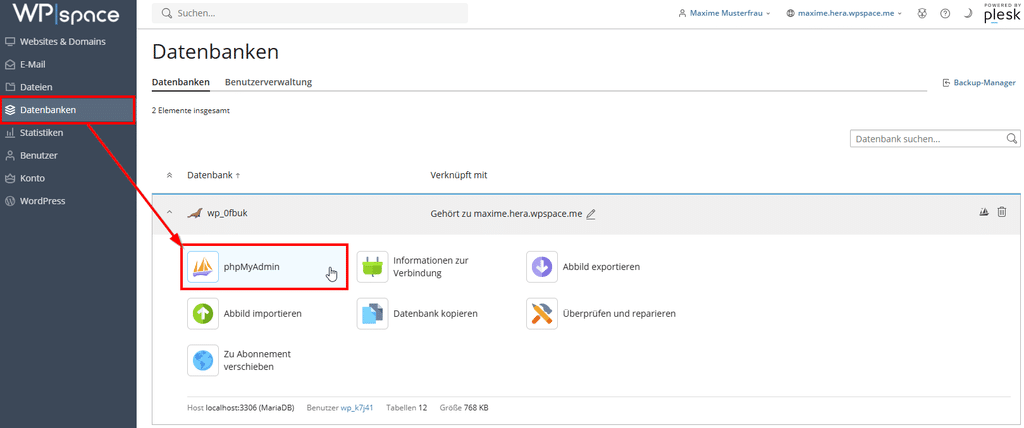
- To do this, log in to your hosting control panel
- Go to "Databases"„
- Select "phpMyAdmin"„
- In the phyMyAdmin interface, navigate to "SQL" in the top menu„
- There you enter the following SQL commands
💡Note: The interface of your host may look different. This is a screenshot of the hosting interface at WPspace.
Delete transients
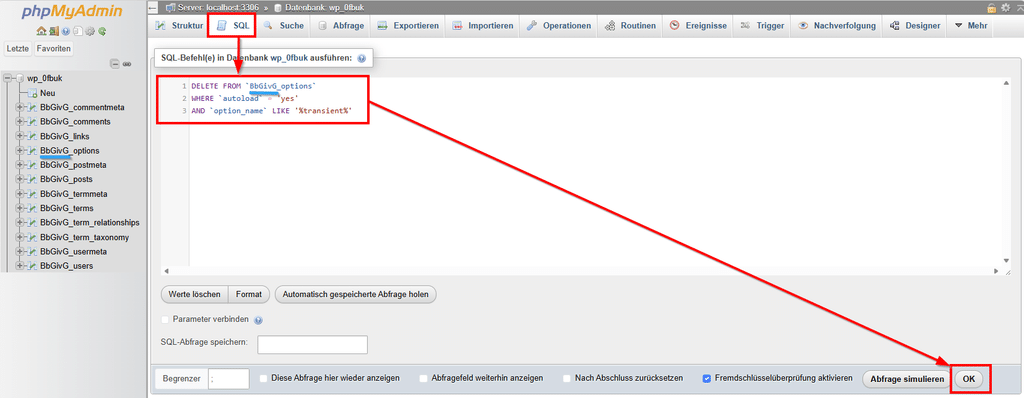
To remove all transients in one go, use this command in phpMyAdmin:
DELETE FROM `wp_options`
WHERE `option_name` LIKE '%_transient_%';
💡Note: Replace the prefix „wp“ of wp_options with your table's individual prefix.
Don't worry: WordPress automatically recreates required transients as soon as they are needed. So you are only deleting the current cache here.
Delete leftover data from uninstalled plugins
If a plugin does not have a proper clean-up job, not all entries of the plugin will be cleanly removed from the database after uninstallation. To delete this unnecessary data clutter, you can enter the following code into your database:
DELETE FROM `wp_options`
WHERE `autoload` = 'yes'
AND `option_name` LIKE '%pluginname%''
💡Note: In the code, the prefix of wp_options must be replaced by the database prefix and „pluginname“ by components of the plugin to be deleted. For Divi, this can be „et_pb“ or for Yoast simply „yoast“, for example. An AI like ChatGPT or Gemini can provide great support in identifying them.
Delete Revisions
As soon as you save a post or page while editing, the old version is cached as a revision. While these are useful, they should also be deleted. You can use the following code to delete the revisions from the database:
DELETE a,b,c
FROM wp_posts a
LEFT JOIN wp_term_relationships b ON ( a.ID = b.object_id)
LEFT JOIN wp_postmeta c ON ( a.ID = c.post_id )
LEFT JOIN wp_term_taxonomy d ON ( b.term_taxonomy_id = d.term_taxonomy_id)
WHERE a.post_type = 'revision'
AND d.taxonomy != 'link_category';
💡Note: In the code, you must replace the wp_ prefix four times with your individual prefix.
Delete old metadata
The metadata, such as author and publication date, is stored in wp_options. Unfortunately, as soon as you edit or delete a post, the data is not automatically deleted from wp_options. Manual intervention is required for this. You can use the following code to delete the orphaned metadata from your wp_options:
DELETE pm
FROM wp_postmeta pm
LEFT JOIN wp_posts wp ON wp.ID = pm.post_id
WHERE wp.ID IS NULL
💡Note: Replace the prefixes "wp_postmeta" and "wp_posts" with your table's specific prefix.
Delete WP sessions
If your cron jobs run asynchronously or fail to trigger properly, sessions won't be deleted correctly. This can quickly result in hundreds of thousands of entries in your `wp_options` table, unnecessarily increasing its size. You can delete the sessions using the following SQL command:
DELETE FROM `wp_options`
WHERE `option_name` LIKE '_wp_session_%''
💡Note: Replace the prefix „wp“ of wp_options with your table's individual prefix.
Expert Tip: How to prevent future data clutter
Prevention is better than cure. To keep your database free of unnecessary data clutter in the long run, we at WPspace have three golden rules:
- Limit revisions:
Add the following code to yourwp-config.phpto save only the last 5 versions of a post:define('WP_POST_REVISIONS', 5);
Alternatively, you can also configure these rules using a WordPress plugin such as "Accelerate WP.". - Choose Plugins Wisely:
Before installing a new plugin, ask yourself: Do I really need this? Every plugin leaves traces. - Regular Maintenance:
Take advantage of our WordPress Maintenance, if you don't want to handle the technical maintenance of your website yourself. We'll take care of 24/7 monitoring, updates to plugins, themes, and WordPress Core, as well as database optimization for you.
Conclusion and Next Steps
The wp_options table is just one table in your website’s database, yet it has a significant impact on performance. If data clutter accumulates here due to old plugins, hundreds of revisions, or orphaned transients, it negatively affects performance in the backend and during dynamic actions such as the WooCommerce shopping cart.
We recommend that you clean your database of unnecessary data clutter at least once every six months. Beginners are best off using free WordPress plugins („Advanced Database Cleaner“ and „AAA Option Optimizer“), while pros can perform the cleanup directly via SQL commands. Whichever method you choose, be sure to create a backup of your database first. This is the only way to ensure your website is protected in case of an emergency.
Include the following tasks in your regular maintenance routine:
- Create a backup: Back up your database externally—either directly through your hosting provider or using a plugin like Updraft.
- Jettison ballast: Regularly clean up revisions and transients.
- Check Autoload: Check and delete the size of the automatically loaded options.
- Deleting junk data: Remove any remnants of uninstalled plugins.



 Deutsch
  English